How to Customize Your iPhone: Personalize Your Experience

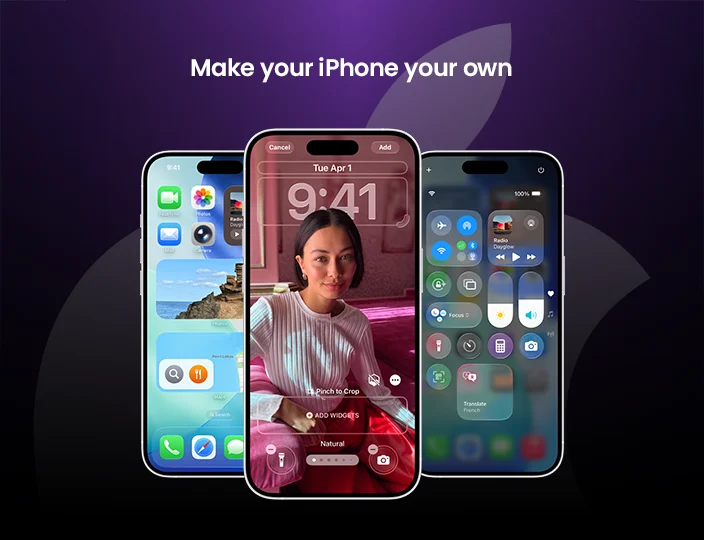
Your iPhone isn’t just a smartphone—it’s your personal device. Apple gives you endless ways to customize your iPhone so it reflects your style and priorities. From the lock screen and home screen to widgets, control shortcuts, call posters, and privacy settings, you can make your iPhone truly yours.
Here’s a complete guide to personalizing your iPhone.
Customize Your Home Screen
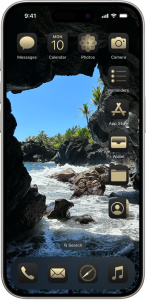
Your home screen is where you spend most of your time, so why not make it look exactly how you want?
- Change app colors and styles: Long-press the background until the apps start to jiggle. Tap Edit > Customize and choose from different color and style options.
- Resize or move apps: Drag apps anywhere on the screen. You can move them to a new page or align them along the bottom for easier reach.
- Frame with wallpapers: Position apps to highlight your favorite background image.
With just a few taps, you can create a clean, vibrant, or even minimalist look.
Personalize Your Lock Screen
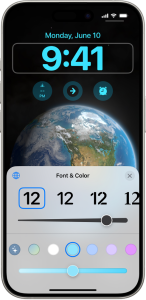
Your lock screen isn’t just for the time and date anymore—it’s a canvas for your style and productivity.
- Add a favorite photo as wallpaper
- Change fonts and colors for the time display
- Add widgets like weather, calendar, or reminders
- Swipe controls for quick actions like timers or translation apps
To get started:
- Long-press your lock screen
- Tap Add New
- Browse the wallpaper gallery and customize your look
When ready, tap Add and select Set as Wallpaper Pair.
Set Up Your Favorite Controls
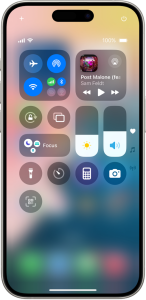
With Control Center, you can quickly access your most-used features:
- On Face ID iPhones: swipe down from the top-right corner
- On Home button models: swipe up from the bottom of the screen
To customize:
- Open Control Center
- Long-press the background
- Tap Add Controls
- Browse the gallery and tap to add shortcuts like Magnifier, Remote, or Screen Recording
Add Widgets to the Home Screen
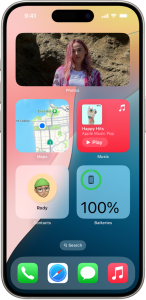
Widgets let you see important information at a glance:
- Weather updates
- Calendar events
- Battery status
- Music playback
- Reminder’s checklist
To add widgets:
- Long-press the background until apps jiggle
- Tap Edit > Add Widget
- Choose the widget you want
Some widgets are interactive, letting you check off tasks or control music without opening the app.
Create a Custom Call Poster
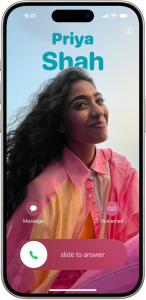
With iOS, you can design your own call poster—what people see when you call them.
- Use a favourite photo or emoji
- Pick your font style and colors.
- Make it bold and unique
To create one:
- Open the Contacts app
- Tap Your Name
- Select Contact Photo & Poster
Your poster will now appear on others’ screens when you call them.
Choose Your Sounds and Vibrations
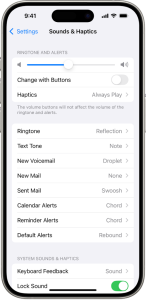
Make your iPhone sound like you:
- Go to Settings > Sounds & Haptics
- Adjust ringtone, alert volume, and vibration patterns
- Assign unique tones for calls or messages from specific contacts via the Contacts app
This way, you know who’s calling or texting without looking at your phone.
Use Accessibility Features
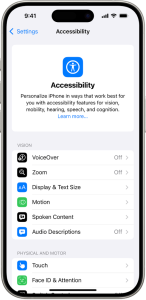
Apple includes powerful accessibility tools to help with vision, hearing, mobility, and speech needs:
- Change text size
- Use Voice Control to operate your iPhone hands-free
- Enable Magnifier for zooming in on details
- Turn on Assistive Touch for easier navigation
You’ll find these under Settings > Accessibility.
Review Your Privacy Settings
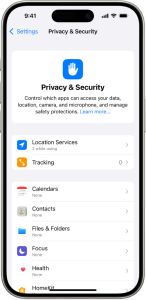
Your iPhone is built with privacy in mind. You can control what apps know about you:
- Go to Settings > Privacy & Security
- Tap Tracking
- Disable Allow Apps to Request to Track to block apps from monitoring your activity across websites and apps
This ensures your data stays in your control.
Customizing your iPhone makes it more functional, personal, and secure. Whether you want a sleek lock screen, easy-to-reach controls, unique sounds, or extra privacy, Apple gives you the tools to design an iPhone that feels like it was made just for you.
iPhone Customization FAQs
- How do I customize my iPhone home screen?
Long-press the background until apps jiggle, then tap Edit > Customize. From there, you can change app colours, resize apps, and move them anywhere on the screen.
- Can I change the font and color on my lock screen?
Yes. Long-press the lock screen, select Customize, and you can change fonts and colors and even add widgets.
- What are iPhone call posters?
Call posters are personalized screens that show up on other people’s phones when you call them. You can add a photo, emoji, colours, and custom fonts to make it unique.
- How do I add widgets to my iPhone?
Long-press the home screen background, tap Add Widget, then select from available widgets like Weather, Music, Calendar, or Reminders.
- Can I assign different ringtones for contacts?
Yes. Open the Contacts app, select a contact, tap Edit, and choose a custom ringtone or text tone.
- Where do I find accessibility features on iPhone?
Go to Settings > Accessibility. Here, you can adjust text size and enable Voice Control, Magnifier, Assistive Touch, and more.
- How do I stop apps from tracking me on iPhone?
Go to Settings > Privacy & Security > Tracking, and turn off Allow Apps to Request to Track.