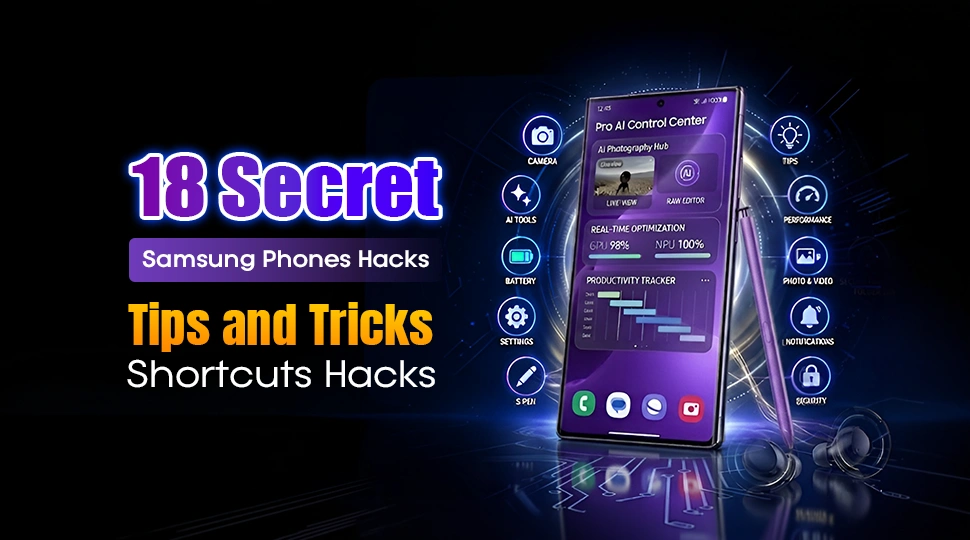
Top Samsung Phone Tips and Tricks Every User Should Know in 2026

Think you know your Samsung phone well? These hidden features might prove you wrong. Most Samsung users in Bangladesh use their Galaxy phone everyday like a normal user. They don’t know there are a lot of hidden features of Samsung phones which can make their work more easier and convenient.
Samsung phones come with plenty of smart tools that can make your phone faster, easier, safer and more personal to use. From battery saving options and camera tricks to privacy settings, shortcuts, display customization, and one ui, small changes can make your daily user experience much better.
In this article, we will share some practical Samsung phone tips and tricks that Bangladesh users may follow to get more out of their Samsung devices. Whether you are a user of Galaxy A, M, F, or S series phones, will these tips help you to unlock your phone’s secret superpowers? So let’s dive in.
Quick Samsung Tips and Tricks You Should Try
Samsung phones come with many useful features, most users only know about the basics. Simple hacks can make your Galaxy phone faster, easier to use and more secure for a better experience in Bangladesh.
From saving battery during travel or load shedding to protecting personal files and improving multitasking, these Samsung tips and tricks can help you get more value from your phone without installing extra apps.
1. Create your very own GIFs from videos
Watching an iconic video clip that resonates so much with you? Create a GIF from any video using Samsung’s Smart Select, no third-party apps necessary Other than creating GIFs from your favourite shows or movies, you can also create GIFs from videos of yourself or your friends and family. Or perhaps you’d like to create a GIF of your pet’s cute moments.You can even add text on to your GIF to add your own touch of flair
2. Use Edge Panels for Quick App Shortcuts
Swipe in from the right edge of your screen to reveal customisable panels. Add your favourite apps, contacts, or tools for lightning-quick access to them all.
3. Fingerprint Tricks
Samsung’s Good Lock app is a toolkit available from the Galaxy Store “Good lock fingerprint” that allows you to supercharge your phone’s fingerprint sensor. You can customize the unlock animation or program specific fingers to instantly launch your favorite apps right away whenever you unlock the device.
Settings > Security and privacy > Biometrics > Fingerprints
Read More: 10 Essential Things to Look for When Buying a Smartphone
4. Carry a desktop in your pocket
Connect your Samsung phone to a monitor or a TV to experience an instant desktop. It is also perfect for presentations or when you need to look professional on Zoom calls. It is also great for opening multiple apps in resizable windows.
5. Multitasking Windows
You can enjoy split-screen facilities to run two apps simultaneously or use floating windows and pop-up views. Want to catch up Netflix while texting now you can do it sorted.
6. Mute calls with a screen flip or a hovering hand
Imagine you are in a meeting or doing something important and suddenly your phone starts to ring . so embarrassing right? Now Samsung has an out of the box solution with this Mute with gestures mode. To enable this feature:
Settings > advance features > motions and gestures >Mute with gestures.
7. Share files using Samsung’s Quick Share.
You can send up to 10 gb files free everyday anywhere by using quick share. you can generate links or create QR code to share it with anyone not just samsung or galaxy users without pairing your device.
8. Become a pro-Samsung user with Developer Mode
Here is a cool hack of a Samsung device that is fun to play around with if you are a software developer or a tech enthusiast.
This lets you configure your phone settings and debug your app performance, perhaps one of Samsung’s most powerful features.
Settings > About phone > Software information, and tap Build number seven times
9. Built in document scanner and QR scanner
Need to scan your document and scan a QR code hurry? Here is samsung’s built in document scanner and QR scanner comes in handy. Simply open your camera app on your Samsung phone, point to the document you wish to scan, tap the “T scan” icon and click on save.same goes for QR scanner like you can scan any QR code or bar code only using your camera.
10. Copy text from photo
Tap the ‘T’ icon in the gallery app to enable text recognition, then long-press any text in a photo to copy it. You can copy anything like restaurant menus, business cards, your friend’s terrible handwriting – it’ll all become editable text.
11. Floating shutter button for taking photo easily
If you often take selfies, you will know sometimes it may be difficult to reach the shutter button to snap a photo. When everyone is crowded around you and you are raising your phone as high as possible to make everyone fit in the photo. So to ease your pain in this situation samsung developed a floating shutter button! To enable this
Camera app > settings > shooting methods > floating shutter button toggled on.
12. Different commands for photo-taking
Here is a phone trick everyone must love. Did you know that Samsung phones have both voice and gesture commands to make photo taking easier. This is helpful for you when you want to take photos further away from your phone, not just selfies but also using a rear camera. You can toggle on these options from the camera app.
Camera app > settings > shooting methods > show palm
Camera app > settings > shooting methods > voice commands
For voice command you can use these words for take a snap:
- Smile
- Capture
- Shoot
- Cheese
- Record Video’ (this is for video recording)
Read More: iPad Tips and Tricks
13. Control Your Home From Your Pocket
One of the best Samsung features out there, you get comfort, convenience, and peace of mind all in your pocket. Whether that’s dimming the lights for movie night or checking the front door while you’re away.
14. Use Wireless PowerShare to Turn Your Phone Into A Charging Pad
When it comes to cool Samsung hacks, this feature is top-notch when turning your Samsung phone into a wireless charger for other devices. Dead earbuds or a Galaxy Watch? Pop them on the back of your phone to charge them up again.
15. Make Secure Folder Your Digital Safe
Samsung devices can keep your content extra private with a separate, encrypted space for sensitive apps, photos and files. You can find this powerful setting under
Setting> security and privacy > More security settings > Secure folder and choose whether you want to guard your data with a PIN, pattern, password or fingerprint. A secure folder icon will be added to your app screen for easy access.
16. Bling Your Notifications With Edge Lighting Effects
Here is another top of the cool Samsung hacks list is edge lighting effects. It allows you to activate colourful lighting effects when notifications arrive. Change the effect style, colour, transparency, width and duration of your light show by accessing ‘edge lighting’ from the settings menu.
17. Samsung Pass And Password Manager
Samsung pass and password manager will help you to store your passwords, bank cards and biometric data securely. Never forget another password or fumble for your card at self-checkout again.
18. Unlock Languages in Real-Time with AR Translate
If you are a traveler, these cool hacks from Samsung will help you in every way to translate languages. Galaxy AI’s camera-based text translation.
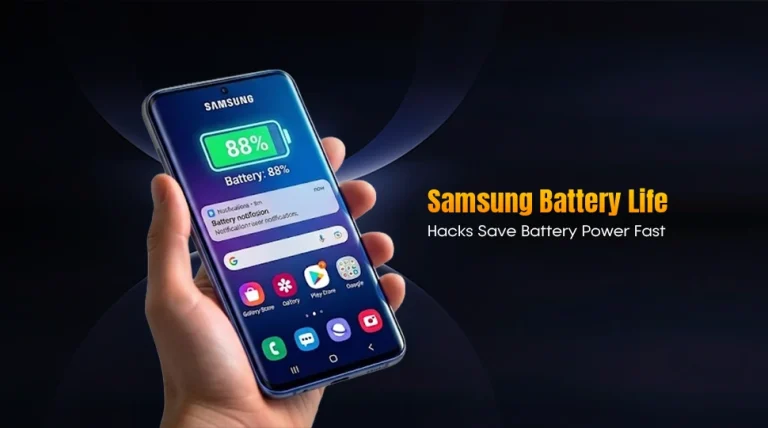
Read More: Samsung Battery Tips
Final Verdict
Your Samsung phone has more useful features than you may notice at first. From Quick Share and Edge Panels to Secure Folder, Power Saving Mode, and Device Care, these small tricks can make your Galaxy phone faster and easier to use every day.
For users in Bangladesh, these Samsung tips and tricks are especially helpful for saving battery during travel or load shedding, protecting personal files by using Samsung Pass, managing mobile banking apps, and improving daily productivity. So, instead of using only the basic features, explore your Samsung settings a little more, and you might find tools that make your phone feel smarter and more personal.