
iPad Tips & Tricks 2026: 25 Hidden Features You Must Know

iPad tips and tricks are are techniques that allow users to access all the functionalities of the iPad. It is important for users to learn about these hacks and shortcuts to maximize the iPad’s productivity, save time, foster creativity, and make the best out of digital work every day.
What Are the Best Tips and Tricks for Your iPad?
- Effortless Multitasking: Employ the Split View and Stage Manager functions to multitask like an expert.
- Pencil Potential: Capitalize on features such as Scribble and Quick Notes to write in real-time digitally.
- Syncing Made Simple: Utilize Universal Clipboard to copy from your iPhone and paste into your iPad.
- Personalization: Create Focus Modes and Back Tap options for your repetitive actions.
- Sustainable Power Usage: Activate the Low Power Mode and minimize background application refreshing.
25 Hidden iPad Features (Detailed Guide)
Split View Multitasking
In Split View mode, you can work with two applications at once, as the screen splits into two windows that can be adjusted in size independently. This feature lies at the core of productivity on iPads.
Real-life use case: Having Safari opened in one pane for research purposes while working with Pages in the other to write a report.
Slide Over Multitasking
With Slide Over multitasking, you can launch another application in a floating window above all the apps you have open; this new app can be minimized or opened up again with ease.
Real-life use case: Checking your Slack notifications or Calculator without having to leave your work space.
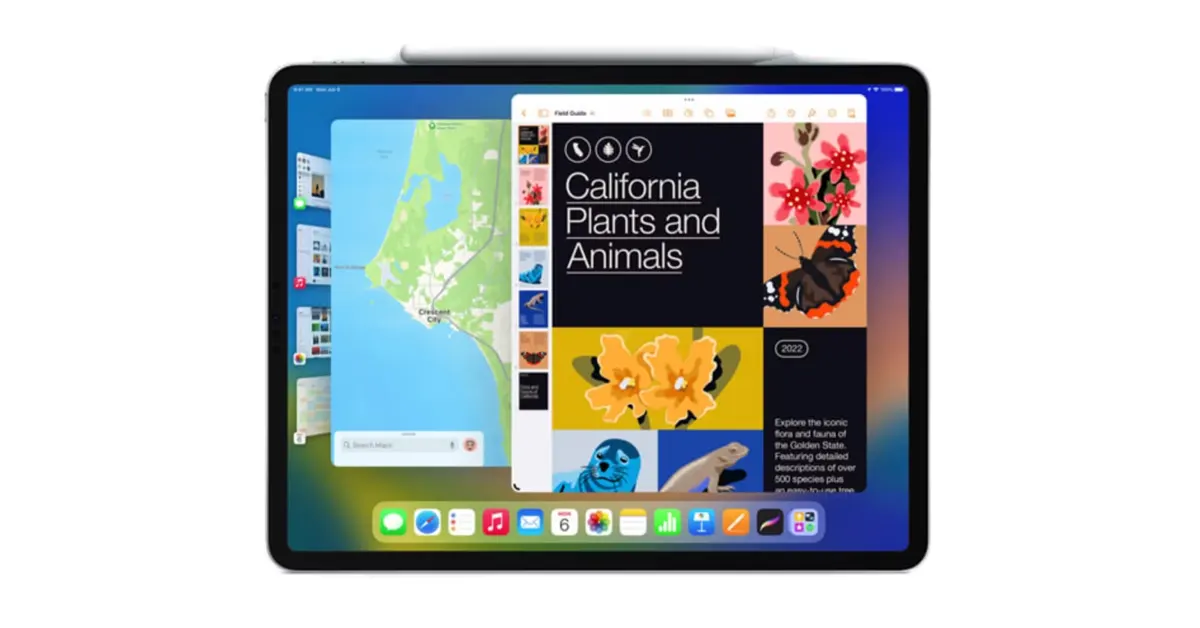
Stage Manager Multitasking
Stage Manager mode is essentially a windowing system where you can change the sizes of your apps and group them together to make it easier to switch between them.
Real-life use case: Creating a Work Group with applications like Mail, Calendar, and Notes.
Drag and Drop Across Apps
Select any text, image, or file and drag it to a different app to instantly move or copy it there.
Real-life use case: Dragging an image from the Photos app to an outgoing email in Mail.
Quick Notes Shortcut
Swipe up from the bottom right corner of your device using either your Apple Pencil or finger to open a pop-up note taking screen at any time.
Real-life use case: Taking a note with your name and phone number in Safari.
Double Tap with Apple Pencil
On certain Apple Pencil models, double tapping on the barrel of the stylus next to the tip allows you to toggle between currently selected tool and eraser.
Real-life use case: Easily erasing your mistakes when drawing in Procreate without using the tool options.
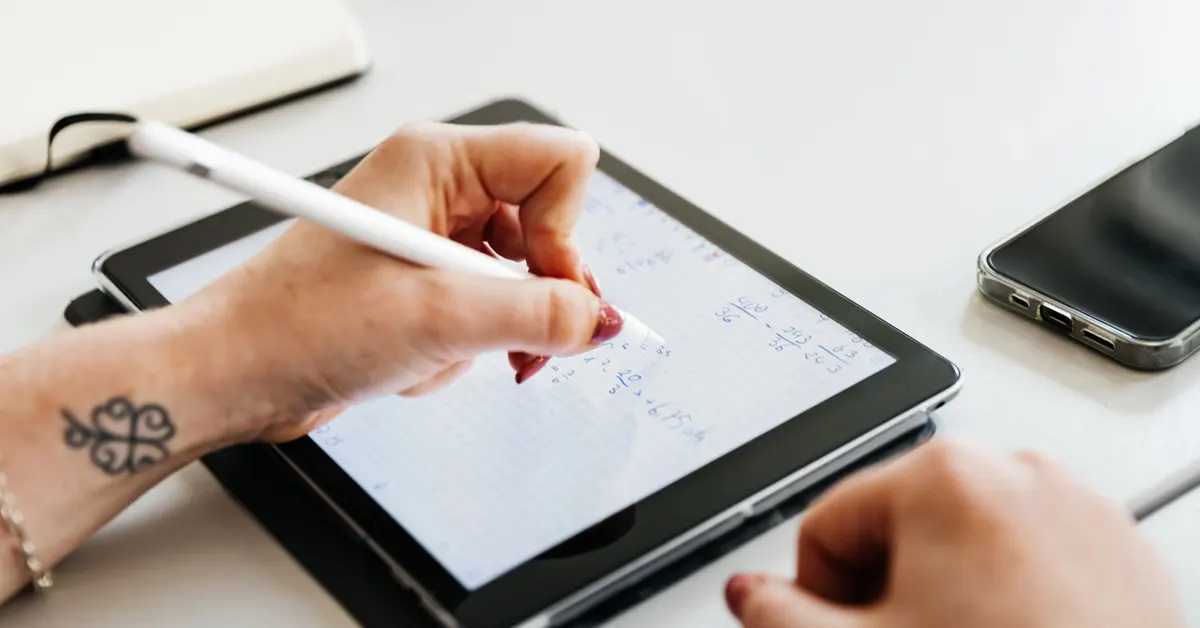
Scribble (Handwriting to Text)
Scribble will automatically convert your handwritten notes into typed text within all text input fields on the device.
Real-life use case: Writing a web address in the Safari address bar by using the Apple Pencil.
Pen Annotation
As soon as you capture the screen, tap its thumbnail to get access to an array of tools such as pens, highlighters, and shapes to add annotations to the screenshot.
Real-life use case: Highlighting the particular mistake that appeared on the website and forwarding it to a developer.
Double/ Triple-Back Tap
Located in Accessibility settings, this feature lets you assign a gesture that consists of two or three taps behind the iPad to perform particular actions.
Real-life use case: Assigning a double-tap gesture for capturing a screenshot and a triple-tap gesture for turning on the Flashlight.
Personalized Control Center
You can customize the Control Center by adding, removing, and rearranging toggles.
Real-life use case: Adding “Screen Recording” and “Dark Mode” toggles to it.
Focus Mode
In Focus Mode, notifications and pages on the Home Screen are filtered according to your activity. For instance, you can activate the mode when you are working, sleeping, or having personal time.
Real-life use case: Creating a Work Focus that disables notifications from social networking applications and permits only notifications from your coworkers.
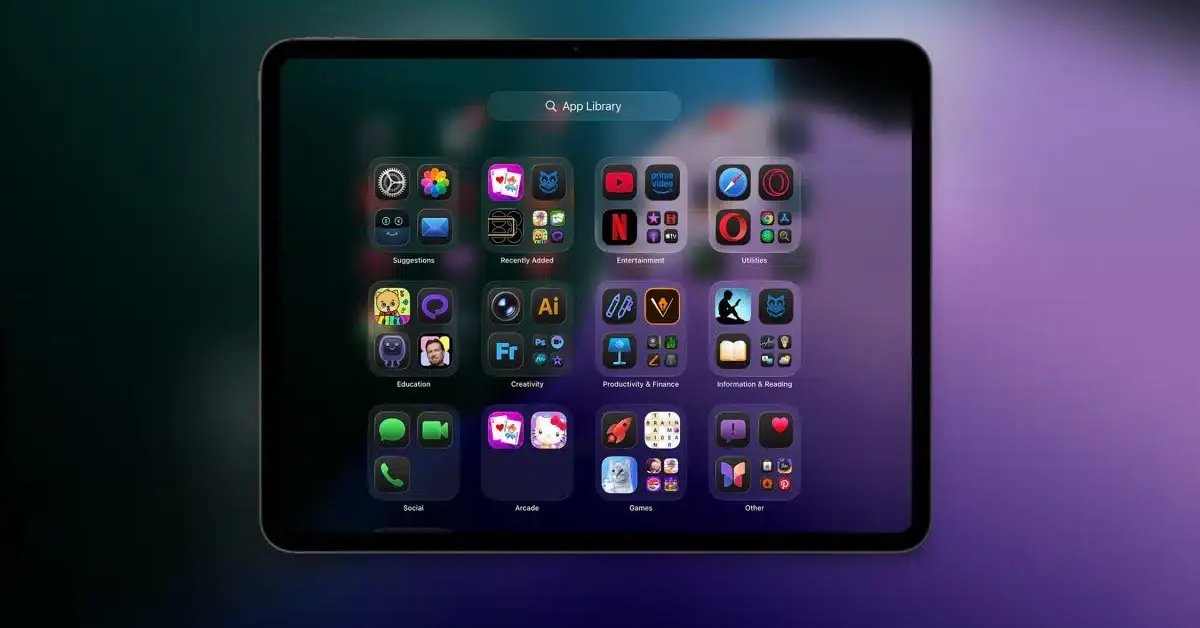
App Library
The App Library sorts all apps on your iPad into folders. This feature enables you to maintain a tidy Home Screen.
Real-life use case: Deleting infrequently used applications from your Home Screen but retaining easy access to them in the App Library.
Keyboard Shortcuts
When using a keyboard accessory, pressing the Command key (⌘) displays the shortcuts available in the current application.
Real-life use case: Pressing Cmd + Tab to navigate between applications like when using a MacBook or PC.
Live Text
Using Live Text, you can edit text that exists within any image or video where you can copy, paste, and translate the content.
Real-life use case: You can easily copy Wi-Fi credentials from an image of the router and paste them in settings.
Universal Clipboard
This feature lets you copy text/images/videos on one Apple device and then paste it on another Apple device that is close to you.
Real-life use case: Copy a piece of text on your iPhone and paste it in Google Docs on your iPad right away.
AirDrop
If you want to transfer data between two Apple devices instantaneously, use AirDrop, which uses WiFi for data transfer.
Real-life use case: Transfer a HD video instantly from your iPad to a friend’s iPhone.
Safari Tab Groups
With Tab Groups, you can categorize your tabs into various groups comprising tens of tabs which will sync across all your Apple devices.
Real-life use case: Creating a Tab Group called “Trip Planning” for your hotel and flight tabs to plan a future holiday.
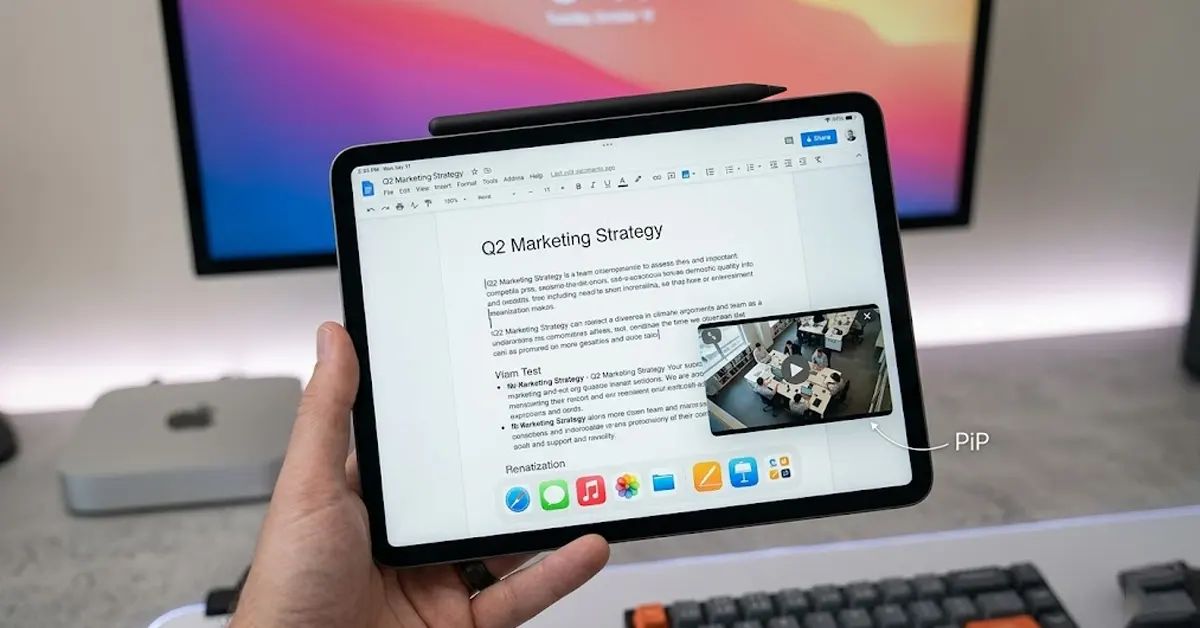
Picture-in-Picture
The picture-in-picture mode enables you to view videos in a smaller-sized window that floats on top of the interface. You can watch the video while working in another application.
Real-life use case: Playing a YouTube tutorial video in a small window while designing a website in another application.
Offline Reading Mode
This mode allows you to save articles in your “Reading List,” where they will be downloaded automatically to view offline.
Real-life use case: Saving lengthy articles to your iPad for reading while on a plane ride without internet access.
Screen Recording
The built-in screen recording feature captures everything that happens on your screen, along with sound if you wish to include it.
Real-life use case: Creating a “how-to” video tutorial for your cousin about how to adjust a particular setting.
Low Power Mode
When activated, Low Power Mode conserves energy by slowing down all background processes and improving device efficiency.
Real-life use case: Turning this on when attending long hours of meetings with a battery charge of only 20%.
Background App Refresh Management
You can manage apps on this page by choosing which of them can refresh background content while in inactive state.
Real-life use case: Disabling this feature in social networking apps in order to conserve energy and prevent excessive data use.
Find My iPad/iPhone Feature
Find My enables you to track your iPad via a map, play a sound, or perform a remote erase action.
Real-life use case: Tracing your iPad through Find My if you leave it behind at a coffeehouse in your city.
Guided Access Mode
This feature lets you restrict iPad to using only one particular app and manage its functionality.
Real-life use case: Passing your iPad to your kid to play games without allowing him to mistakenly delete your emails.
Text Replacement Shortcuts
Configure unique shortcuts on your device and have them expanded to a longer message automatically.
Real-life use case: Configuring “@@” to be replaced by your email address.
iPad Tips for Productivity
Using an iPad for work requires a strategic approach to organization and speed.
- Files Application: Use it as you would use Finder/Explorer, to control your cloud-based storage and local storage.
- Stacking Widgets: This will allow you to save some space as it allows you to stack widgets such as Calendar and Weather widget one above another.
- Hot Corners: If you are using mouse, then set corner action to App Switcher and Notifications.
- Siri Shortcuts: Use Siri to automate your daily tasks, e.g., “Send Email of My Last Photo.”
- External Display Support: This enables you to connect your iPad to monitor to enjoy dual display.
- Dictation: By clicking on microphone button in keyboard application, you can type your document using microphone.
iPad Tips for Students
Students can turn the iPad into the ultimate digital notebook with these tweaks.
- Search Your Handwriting: Your Notes app is able to do a search on handwriting just like any typed text.
- Split Screen for Lecture Recordings: Notability allows you to record lectures and make notes at the same time.
- Scanning Docs: You can use the camera within your Notes app to scan your handouts and save them as PDF files.
- Dark Mode for Studying: You can use the dark mode when studying at night to avoid eye strain.
- Notes Locking: You can lock your sensitive notes and journals using FaceID or passwords.
- Using Flashcards: You can drag and drop images from Safari straight into your flashcard applications.
iPad Battery Saving Tips
Maximize your screen time with these power-management secrets for 2026.
- Limit Frame Rate: In Pro devices, turn on “Limit Frame Rate” under Accessibility to limit the display refresh rate to 60Hz.
- Auto-Brightness: This must be turned on so that the display isn’t outputting full brightness in a dark environment.
- Battery Health: It’s important to check the battery usage regularly through the Settings app by going to Settings > Battery.
- Fetch vs. Push: Instead of pushing data continuously, set the mail to fetch every half an hour.
- Reduce Motion: “Reduce Motion” under Accessibility helps save some GPU power.
Hidden iPad Features You Probably Didn’t Know
- Magnify: Turn your iPad into an extremely powerful magnifying tool for tangible items.
- Mouse Functionality: Connect any Bluetooth mouse and get a circular mouse pointer on your iPad screen.
- On-Screen Trackpad: Press down the Spacebar button from the on-screen keyboard to use the entire keyboard as a trackpad.
- Sound Recognition: Configure your iPad to recognize certain sounds, such as doorbells or a baby crying.
Feature Summary Table
| Feature | Benefit | Best For |
|---|---|---|
| Split View | Multitasking | Students |
| Stage Manager | Desktop experience | Professionals |
| Live Text | Copy text | Students |
| AirDrop | Fast sharing | Everyone |
FAQs
What are the methods to locate the hidden functionalities on the iPad?
Hidden functions can be found in Settings > Accessibility, or by long-pressing the icons on the Home Screen that shows the “Quick Actions.”
Is there a secret calculator functionality in the iPad?
Although an official “Calculator” application does not exist on older iPadOS versions, you may enter mathematical equations via the Search bar (Spotlight).
Is it possible to use an iPad as a second display?
Absolutely, the “Sidecar” function allows you to utilize your Mac’s wireless display on the iPad.
How do I prevent the battery from discharging quickly from my iPad?
The following are the most efficient approaches to conserve energy: decreasing screen brightness, switching off Background App Refresh, and activating Low Power Mode.
Does the Stage Manager function exist on all iPads?
Stage Manager works on iPad Pro and iPad Air devices that are equipped with M-series processors (M1, M2, M4), along with certain A-series devices.
Conclusion
By learning these 25 tricks for the iPad in 2026, you will revolutionize the way you use the device. If you are a student who wants new ways to study, or if you are a working professional who wants effective methods to multitask, you will benefit from these tips. Simply start applying them now, and see how much more productive you become.
Read More